
DWG to PDF pro
Win32 et 64, FrançaisInstructions d'utilisation générales
The first time you run the app, it will add some registry values to register the app with Autodesk® AutoCAD®. Choose "Always load this application", and then the app will load automatically every time AutoCAD is started.
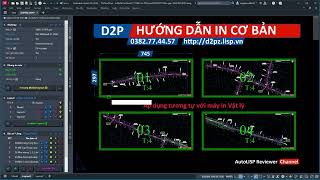
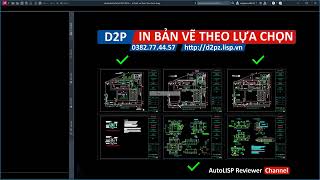
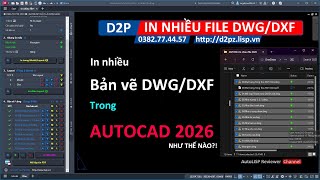
2. The Page Setup must be created with D2P command invokes. D2P Will show the Main Palette on the screen. There are multiple functions on the Palette:
3. Section Page Setup: Main settings for plotting (Include: Printer, Paper size, Preview option, Plotstyle, Scaling, and Plot order). There are 3 buttons with different functions:
- Block's Name: Plot with the block name of the selected block. The app will find all the name-match blocks with the selected one. The block origin must be the lower-left extent of it.
- Polyline' Layer: Plot with all polylines that have the same layer as the first selected one.
- By Selected: Plot with the select block (not find any other matched one).
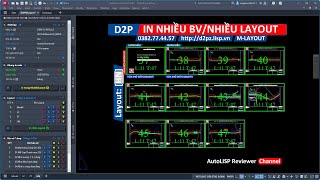
4. Section Layout: List all layouts of the current drawing.
- You can switch On/Off by clicking the light on the Right of each layout's name.
- Using the button By Layout to plot selected (which layout has the light is Yellow)
5. Section View: List all views of the current drawing.
- You can switch On/Off by clicking the light on the Right of each view’s name.
- Using the button By View to plot selected (which layout has the light is Yellow)
Captures d'écran


Commandes
| Icône du ruban/de la barre d'outils | Commande | Description de la commande |
|---|---|---|

|
D2P |
Call Pagesetup palette to manage plot settings |
Installation/Désinstallation
The installer that ran when you downloaded this app/plug-in from Autodesk App Store will start installing the app/plug-in. OR simply double-click the downloaded installer to install the app/plugin. You may need to restart the Autodesk product to activate the app/plug-in. To uninstall this plug-in, exit the Autodesk product if you are currently running it, simply rerun the installer, and select the "Uninstall" button. OR click Control Panel > Programs > Programs and Features (Windows 7/8.1/10/11) and uninstall as you would any other application from your system.
Informations supplémentaires
Problèmes connus
Tested on AutoCAD 2018-2026 versions.
Contact
Informations sur l'auteur/la société
Informations de support
For any issue or queries please email to admin@lisp.vn
Historique des versions
| Numéro de version | Description de la version |
|---|---|
|
1.0.26 |
Support AutoCAD 2026 Initial version. |
|
1.0.24 |
Initial version. |
