
AReka Viewport
Win64, EnglishGeneral Usage Instructions
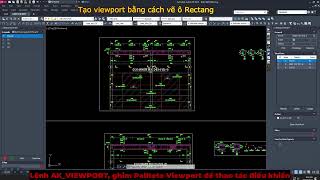
Run the command AK_VIEWPORT to show the pallet.
- Step 1: Create the new Viewports.
- Step 2: Insert the viewports into the layout from the list.
Run the command AK_VIEWPORT to begin scheduling the number of tiles.
- Step 1: Manage the layout tabs (add/modify/delete).
View video tutorials for details.
Screenshots


Commands
| Ribbon/Toolbar Icon | Command | Command Description |
|---|---|---|

|
AK_VIEWPORT |
Show Viewport Palette |

|
AK_RECBOUNDARY |
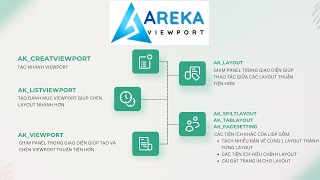
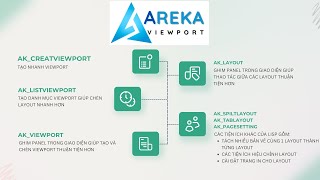
CREATE A CLOSED PLINE SURROUNDING THE SELECTED OBJECTS TO CREATE VIEWPORT |

|
AK_CREATEPOLYLINEVIEWPORT |
CREATE VIEWPORT FROM CLOSED PLINE / SELECT THE OBJECTS TO CREATE |

|
AK_LISTVIEWPORT |
DISPLAY VIEWPORT MANAGEMENT WINDOW |

|
AK_LAYOUT |
Show Layout palette |

|
AK_SPLITLAYOUT |
HELPS SPLIT MULTIPLE DRAWINGS INTO ONE LAYOUT, THEN CREATE SEPARATE LAYOUTS BY SELECTING EACH TITLE BLOCK |

|
AK_TABLAYOUT |
EXPAND FUNCTION TO MANAGE LAYOUTS SUCH AS MOVE LAYOUT, COPY, DELETE, ADD, FIND, SET TO DEFAULT, SORT NAME ... |

|
AK_PAGESETTING |
SET UP PAGE IN LAYOUT (CAN HAVE DIFFERENT SETTINGS FOR EACH LAYOUT) |
Installation/Uninstallation
The installer that ran when you downloaded this app/plug-in from Autodesk App Store will start installing the app/plug-in. OR, simply double-click the downloaded installer to install the app/plugin. You may need to restart the Autodesk product to activate the app/plug-in. To uninstall this plug-in, exit the Autodesk product if you are currently running it, simply rerun the installer, and select the "Uninstall" button. OR, click Control Panel > Programs > Programs and Features (Windows 10/11) and uninstall as you would any other application from your system.
Additional Information
Known Issues
Contact
Author/Company Information
Support Information
When you have any problems, please contact me via email: Hung_tthanh@yahoo.com
Version History
| Version Number | Version Description |
|---|---|
|
1.0.0 |
Initial Release. |
