
AutoLINE Linetypes
Win64, EnglishGeneral Usage Instructions
AutoLINE is Completely Integrated into Autodesk® AutoCAD®
Once AutoLINE is installed, all of its linetypes can be used just like regular standard CAD linetypes. Linetypes can be changed using the entity property toolbar, ribbon, or palettes. You can also control the lineweight, color, and current entity scale (CELTSCALE) per entity.
AutoLINEs behave just like Lines, Arcs, and Polylines
AutoLINEs are based on native CAD objects. That means you can Edit Using PEDIT, BREAK, TRIM, EXTEND, etc., and use all of your CAD editing commands, including grip-stretch
All of AutoLINEs special features can be accessed through the AutoLINE ribbon tab or through the ALINE command.
Screenshots

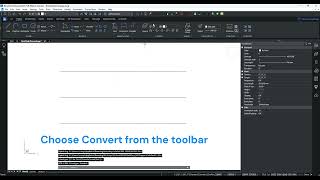

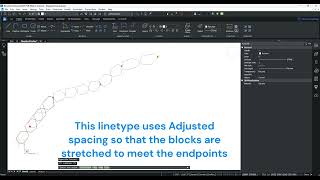
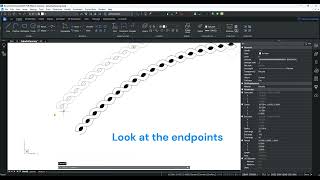
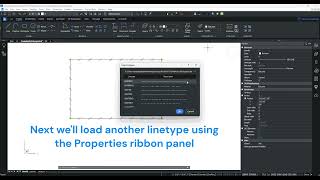
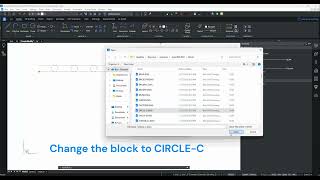
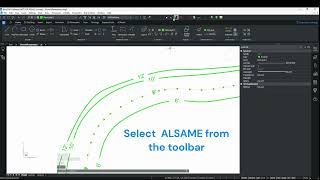
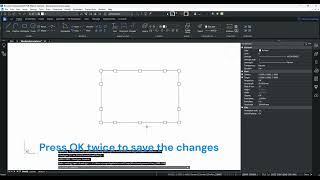
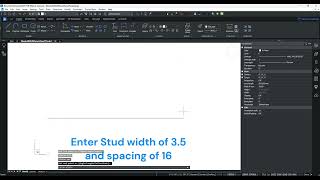
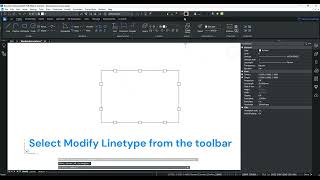
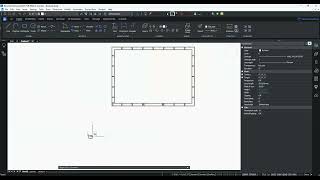
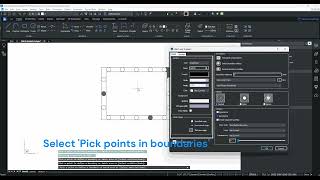
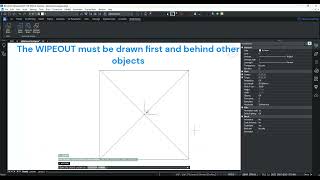
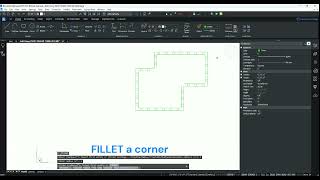
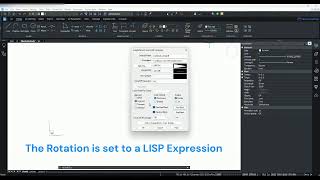
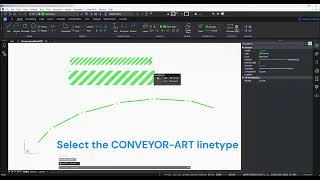
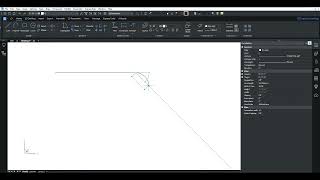
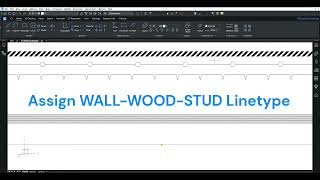
Commands
Installation/Uninstallation
By default, AutoLINE gets installed in C:\Program files\Autodsys\AutoLINE 2027 for AutoCAD 202? by running the AutodsysAutoLine2027_<version>_<date>.exe file and entering various prompts specifying user info and program options.
AutoLINE will work for three days without being registered. To start a 30-day trial of AutoLINE, please complete the following steps:
- Download AutoLINE to your \Downloads folder.
- To install, right-click on the install file and select 'Run as administrator', then follow the rest of the prompts.
- To register, right-click the AutoCAD desktop icon and select 'Run as administrator'. If prompted that you are in Trial mode, click Ok.
- Click the Register button & fill out the form and submit
- Click to close the window and continue working
- Wait to receive the authorization code via email
- To authorize, right-click the AutoCAD desktop icon and select 'Run as administrator'. If prompted that you are in trial mode click Ok
- Please use copy (CTRL-C) and paste (CTRL-V) to enter the authorization code instead of typing
- Press OK.
AutoLINE is uninstalled using the Windows Control Panel's Add or Remove Programs option.
Additional Information
For organizations with more than five users, Autodsys offers network licensing with a single activation point.
Known Issues
If the username and serial number do not appear in the authorization window, it means that the user is not using 'Run as administrator' or the installation was not done correctly.
Contact
Author/Company Information
Support Information
Users may obtain help with installation by using the web form available at https://autodsys.com/login.asp. Autodsys also assists with customization or building of linetypes for an additional fee.
Version History
| Version Number | Version Description |
|---|---|
|
5.1.1 |
Initial release The 2027 version adds the ability to import CAD Linetypes, to override linetypes for each object, and a new rotation option: Right or Bottom |
