
Quick Mleader Contents Plus
Win64, EnglishGeneral Usage Instructions
To get started with QUICK MLEADER CONTENTS PLUS, installing it from the Autodesk App Store. Once loaded, type "DV_Q1" in the command line to launch the main dialog or by clicking the button on the Ribbon.
- In the dialog, you'll see three main sections: "Group" on the left for categories, "Contents" in the middle for items within the selected group (with multiline items highlighted in gray for quick identification), and "Smart Switch Contents" on the right for queuing multiple selections. Use the search box to filter groups or contents dynamically.
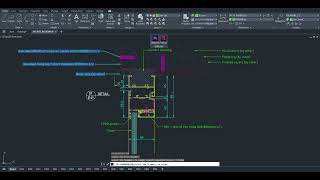
- To place a single MLeader: Select a group, choose a content item (double-click for instant placement), check or uncheck "BACKGROUND MASK" as needed, and click "OK". At the command prompt, specify the arrowhead point, then drag to the landing point for a live preview – the text justification auto-adjusts based on direction for optimal alignment.
- For multiple placements: Select items from "Contents" (hold Ctrl for multi-select), add them to "Smart Switch Contents" using the "Add" button. Reorder with "Up"/"Down" if needed. Click "OK" to enter placement mode, where you can insert sequentially, using keywords like "Next", "Previous", or "Exit" to navigate contents without reopening the dialog.
- Customize via the "Setting" button: Choose MLeader styles and layers from dropdowns, and use "Clear Data" to reset libraries if required. Add new content with the "Add" button under "Contents", edit selected items with "Edit", or remove with "Remove" (confirm deletion for empty groups). Use "Import" and "Export" for data transfer via Excel files – ensure the format has "Type" (group) and "Contents" columns.
- Grammar Check: Click "Check Grammar" to scan your selected groups for errors. Note: An internet connection is required for this feature
This workflow fits seamlessly into your Autodesk® AutoCAD® routine: Prepare libraries once, then insert annotations rapidly during drafting, saving hours on repetitive tasks and ensuring consistent, professional outputs across projects.
Take annotation precision even further with MLEADER ALIGN, the perfect companion command. Align multiple MLeaders to a base one in seconds. Type "DV_MLEADERALIGN" in the command line to launch the main dialog or by clicking the button on the Ribbon.:
- Select your base MLeader
- Pick others to align
- Watch as they automatically align together
No more manual adjustments. Achieve consistent layouts, cleaner drawings, and faster post-editing. It’s the smart way to maintain professional standards across complex designs.
Screenshots




Commands
| Ribbon/Toolbar Icon | Command | Command Description |
|---|---|---|

|
DV_Q1 |
Quickly place MLeaders with customized Contents. |

|
DV_MLEADERALIGN |
Align multiple MLeaders to a base one in seconds. |
Installation/Uninstallation
The installer that ran when you downloaded this app/plugin from the Autodesk App Store will start installing the app/plugin. OR, simply double-click the downloaded installer to install the app/plugin. To uninstall this plug-in, exit the Autodesk product if you are currently running it, simply rerun the installer, and select the "Uninstall" button. OR, click Control Panel > Programs > Programs and Features (Windows 8.1/10/11) and uninstall as you would any other application from your system.
Additional Information
Known Issues
Contact
Author/Company Information
Support Information
Support email: dat.phucvo@gmail.com
Version History
| Version Number | Version Description |
|---|---|
|
1.0.0 |
Initial Release with "Smart Switch Contents" |
