
SectionSync LITE
Win64, EnglishGeneral Usage Instructions
------------------------------------------------------------
GENERAL USAGE INSTRUCTIONS
------------------------------------------------------------
1. OPEN THE TEMPLATE OR YOUR OWN PROJECT
------------------------------------------------------------
Start with Template.dwg (included) to see a working example, or open your own drawing containing a roadway or utility centerline in Model Space.
The centerline must be a LWPOLYLINE.
------------------------------------------------------------
2. PLACE VP BLOCKS ALONG THE ALIGNMENT
------------------------------------------------------------
Insert the provided VP block at each location where you want a separate plan sheet to be generated (for example, every 450 feet, by station, or at key design points).
Each VP block represents the center location for one PLAN-## sheet.
------------------------------------------------------------
3. PREPARE THE PLAN LAYOUT
------------------------------------------------------------
Use the included PLAN layout from Template.dwg, or create your own layout named PLAN.
The PLAN layout must contain exactly two paper-space viewports (TOP and BOTTOM) that SectionSync LITE will control.
Ensure both viewports are UNLOCKED before running the command.
------------------------------------------------------------
4. RUN SECTIONSYNC LITE
------------------------------------------------------------
In Autodesk® AutoCAD®, type one of the following commands:
SECTIONSYNC_LITE
SSL
Select the centerline polyline when prompted.
The routine will:
• Scan the drawing for VP blocks
• Sort them along the centerline by chainage
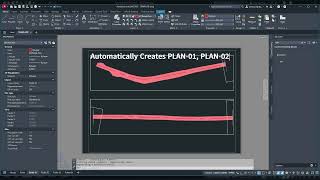
• Create or update PLAN-01, PLAN-02, PLAN-03, ...
• Center each viewport on the VP block location
• Rotate views to match the alignment bearing
• Apply viewport scale (preset or VP-controlled)
• Continue numbering from existing PLAN-## sheets
If an odd number of VP blocks exists, the final sheet will use the TOP viewport only.
------------------------------------------------------------
5. OPTIONAL SCALE CONTROL (v1.1)
------------------------------------------------------------
Viewport scale may optionally be controlled using a VP block attribute named:
SCALE
Examples:
• SCALE = 20 -> 1:20
• SCALE = 30 -> 1:30
• SCALE = 40 -> 1:40
If the SCALE attribute is not present or invalid, the routine uses the default preset scale.
IMPORTANT:
• Invisible = Yes
• Constant = No
• Preset = Yes
Changing SCALE affects viewport zoom and CustomScale only.
It does NOT resize the VP block graphic.
------------------------------------------------------------
6. REVIEW THE GENERATED PLAN SHEETS
------------------------------------------------------------
Flip through the PLAN-## layouts and confirm that:
• Each viewport is centered on the correct VP block location
• The view rotation matches the alignment direction
• The drawing scale is correct for each sheet
------------------------------------------------------------
7. RE-RUN AFTER DESIGN CHANGES
------------------------------------------------------------
If the alignment or design changes, move, add, or remove VP blocks and run SECTIONSYNC_LITE again.
Existing PLAN-## layouts will be updated automatically.
------------------------------------------------------------
8. TRIAL AND ACTIVATION
------------------------------------------------------------
SectionSync LITE includes an evaluation trial:
• 5 runs OR 7 calendar days (whichever occurs first)
After the trial expires, activation is required.
To activate:
1) Run:
SSL_ACTIVATE
2) Enter the same email address used during purchase
Once activated, SectionSync LITE will run without further prompts for that user on that computer.
------------------------------------------------------------
Screenshots


Commands
| Ribbon/Toolbar Icon | Command | Command Description |
|---|---|---|

|
SSL |
Creates/updates PLAN-## layouts by syncing viewports to VP blocks along a selected path/centerline. |

|
SECTIONSYNC_LITE |
Creates/updates PLAN-## layouts by syncing viewports to VP blocks along a selected path/centerline. |

|
SSL_ACTIVATE |
Activates SectionSync LITE using your purchase email. |
Installation/Uninstallation
The installer that ran when you downloaded this app/plug-in from Autodesk App Store will start installing the app/plug-in. OR, simply double-click the downloaded installer to install the app/plugin. You may need to restart the Autodesk product to activate the app/plug-in. To uninstall this plug-in, exit the Autodesk product if you are currently running it, simply rerun the installer, and select the "Uninstall" button. OR, click Control Panel > Programs > Programs and Features (Windows 10/11) and uninstall as you would any other application from your system.
Additional Information
------------------------------------------------------------
ADDITIONAL INFORMATION
------------------------------------------------------------
SectionSync LITE is designed for roadway, civil-site, and utility alignment projects that require multiple plan sheets along a single centerline.
The workflow is based on VP blocks placed along the alignment in Model Space. The plug-in generates and synchronizes PLAN-## layouts automatically from those locations.
------------------------------------------------------------
INCLUDED IN THIS DOWNLOAD
------------------------------------------------------------
• SectionSync_LITE.vlx
Main AutoLISP automation routine
• Template.dwg
Sample drawing containing a VP block, sample centerline, and a pre-built PLAN layout
• ReadMe.txt
Installation instructions, general usage guidance, and workflow notes
• License_Instructions.pdf
Activation and licensing instructions
• End_User_License_Agreement.txt
License terms, restrictions, and refund policy
------------------------------------------------------------
TRIAL AND ACTIVATION
------------------------------------------------------------
SectionSync LITE installs in Evaluation Mode:
• 5 runs OR 7 calendar days (whichever occurs first)
All features are fully enabled during the evaluation period.
After the trial expires, activation is required to continue use.
Activation is performed directly inside AutoCAD using your purchase email. No license keys are required.
To activate:
1) Run:
SSL_ACTIVATE
2) Enter the same email address used during purchase
Once activated, SectionSync LITE will run without further prompts for that user on that computer.
------------------------------------------------------------
Known Issues
Contact
Author/Company Information
Support Information
Version History
| Version Number | Version Description |
|---|---|
|
1.1.0 |
------------------------------------------------------------ VERSION 1.1.0 ------------------------------------------------------------ Added optional VP block SCALE attribute support for viewport scale control. Viewport scale can now be controlled directly from VP blocks without modifying the routine. If the SCALE attribute is not present or invalid, the default preset scale is used. Standardized registry path to AutoLISPWizard namespace. Minor internal improvements and stability updates. ------------------------------------------------------------ VERSION 1.0.0 ------------------------------------------------------------ Initial public release of SectionSync LITE. Includes VP block-based viewport synchronization engine, PLAN layout generation, sample Template.dwg, and built-in 5-run / 7-day evaluation mode. ------------------------------------------------------------ |
|
1.0.0 |
Initial public release of SectionSync LITE. Includes VP block–based viewport sync engine, PLAN layout generation, sample template DWG, and built-in 5-run / 7-day evaluation mode. |
