
Solid Subtract
Win64, EnglishGeneral Usage Instructions
You can pre-set the subtraction command in the A>V>C> Options Palette (AVCOptions). You can create several settings styles to quickly switch between them. You can create your buttons and macros by switching to one of the styles.
Select the detail solids or other objects from which you want to subtract.
Call the subtraction command. To subtract without a gap, use SSub; to subtract with a gap, use the GAP command.
If nothing has been pre-selected, the command will ask you to select objects.
In the selection prompt, you will see options for switching the settings style, for opening the settings dialog, and for setting the gap.
You can select multiple solids, regions, and surfaces at once. If subtraction from blocks is configured, you can also select blocks containing solids. If MeshToSolid is configured, you can select meshes and other objects supported by this command.
After selecting the detail objects, the program will ask you to select the subtrahend (hole) objects to subtract. If you want the program to find solid holes in the first set of objects by their layer, use the separate Drill (DRI) command.
Next, the program for converting meshes into solids will be called. You must have a license for this command; paying for the Solid Subtract plugin alone is not enough.
All objects will be divided into groups of the same type. Only solids will be subtracted from solids, and surfaces and regions from surfaces. Regions will be subtracted by groups lying in the same plane.
Flat surfaces will be converted to regions if another region on the same plane is also selected.
If subtraction with a gap is required, the subtracted hole objects will be increased by the specified gap (analogous to the _solidedit _body _offset command). This increase in perimeter will not work correctly for all surfaces. Only the outer contour of regions is increased, while holes remain unchanged.
All hole parts will be subtracted from each part object in turn. Solids will not be glued into one multisolid. The material and color of the original object will be preserved. During the subtraction process, the program will output messages to the command line about problems that have occurred, but will not interrupt the work even if the subtraction of one pair of objects fails.
You can interrupt the subtraction process by pressing ESC.
After subtraction, all original objects will be deleted. But you can configure the program to save the original part objects or subtracted (hole) objects. In any case, no blocks will be deleted.
If a layer is specified for results, then all processed objects will be assigned this layer and ByLayer properties. At the same time, the coloring of the faces will be reset.
If the subtraction divides a solid into several unrelated bodies, then the program will save them separately. But this function can be disabled, and multi-solids from several bodies can be saved.
At the end of the work, the program will report the number of subtraction operations performed and the number of errors that occurred.
Be sure to check the command line messages if the program does not work as you would like.
Screenshots


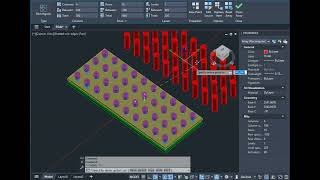
Commands
| Ribbon/Toolbar Icon | Command | Command Description |
|---|---|---|

|
GAP |
Subtract with gap |

|
SSub |
Solid Subtract |

|
SUnion |
Solid Union |

|
SInt |
Solid Intersect |
Installation/Uninstallation
The installer that ran when you downloaded this app/plug-in from the Autodesk App Store will start installing the app/plug-in. OR, simply double-click the downloaded installer to install the app/plugin. You may need to restart the Autodesk product to activate the app/plug-in. To uninstall this plugin, exit the Autodesk product if you are currently running it, simply rerun the installer, and select the "Uninstall" button. OR, click Control Panel > Programs > Programs and Features (Windows 10/11) and uninstall as you would any other application from your system.
Additional Information
Known Issues
Contact
Author/Company Information
Support Information
Support is provided only by e-mail: avc.programming@gmail.com
Telegram: @avc_programming
You can ask any questions about the work of A>V>C> programs, their installation and configuration, optimization of the work of engineers, and setting up business processes in the exhibition business. Help is provided to all users, regardless of whether they donated or not. Any suggestions and comments are welcome for further improvement of the programs.
The main method of communication is e-mail. You can write in any language. If you do not write in English, then write in short, simple but complete sentences without abbreviations and special terms.
Do not forget to attach the problem ".DWG" file to the letter.
Version History
| Version Number | Version Description |
|---|---|
|
2025.12.05 |
Initial Release |
