Batch Find and Replace

Batch Find and Replace

Win32 and 64, English

CAD Programs
This program is a must-have if you need to batch 'Find and Replace' in large DWG packages.

General Usage Instructions

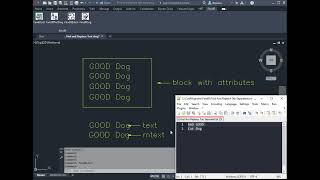
Fill out the tab-delimited file to specify the words you need to find and replace.

You have the option of case sensitivity and whole word matching, as well as paragraph splitting.

Then either apply to the current DWG or start the batch processor and apply the 'Find and Replace' to multiple drawings.

Screenshots

Commands

Ribbon/Toolbar Icon Command Command Description

FandRList

Open the file containing the find and replace list. (Find word or phrase, tab, then replace word or phrase.

FandRThisDwg

Execute FandR on this drawing.

FandRBatch

Execute the FandR command on multiple dwgs (batch command)

FandRLog

Open the log file to view results of last FandR session.

FandRWholeWordBoundaries

This function allows you to edit the character list that defines what constitutes a 'whole word.' Characters listed in this file are not delimiters. When Whole Word is enabled, a match is only accepted if it is not "attached" to adjacent word characters. Specifically, the character immediately before and immediately after the match must either not exist (i.e., the match is at the very start or end of the text) or not appear in the Whole Word file. This file is completely editable. You may choose to remove all numbers, for example. This would make numbers act like delimiters instead of word characters.

Help

Display the help file for the Find and Replace tools

Installation/Uninstallation

The installer that ran when you downloaded this app/plug-in from the Autodesk App Store will start installing the app/plug-in. OR, simply double-click the downloaded installer to install the app/plugin.

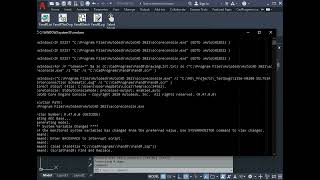
After initial installation, AutoCAD must be restarted, and the user must select "Always Allow" in order for the program to be allowed to run.

To uninstall this plug-in, exit the Autodesk product if you are currently running it, simply rerun the installer, and select the "Uninstall" button. OR, click Control Panel > Programs > Programs and Features (Windows 10/11) and uninstall as you would any other application from your system.

Additional Information

Known Issues

Files (DWGs) cannot be opened when a batch operation takes place; otherwise, the save will not succeed.

Contact

Company Name: CAD Programs
Support Contact: support@CadPrograms.ca

Author/Company Information

CAD Programs

Support Information

Company Name: CAD Programs
Support Contact: support@CadPrograms.ca

Version History

Version Number Version Description

1.6.2

V1.0.0 Initial release. V1.1.0 Added a button in the AutoCAD ribbon to display the help file. V1.2.0 Updated for AutoCAD 2024/2025 V1.3.0 Updated for AutoCAD 2026/2027 V1.4.0 Changed installation directory back to AppData\Roaming V1.5.0 Added support for AutoCAD table objects V1.6.0 Added new option to split on paragraphs (\P) for mtext and table cells. V1.6.1 Removed trusted path code. V1.6.2 Fixed a case-sensitivity bug.

V1.2

V1.0 Initial release. V1.1 Added button in AutoCAD ribbon to display help file. V1.2 Updated for AutoCAD 2024/2025

V1.1

V1.0 Initial release. V1.1 Added button in AutoCAD ribbon to display help file.
Go top