
Trunk Tools
, EnglishGeneral Usage Instructions
Installation Instructions
Add Trunk Tools to Autodesk Construction Cloud®
- Sign in as an admin to your Autodesk® account (https://acc.autodesk.com/projects)
- Go to the account admin screen
- Click Apps, then add Trunk Tools
Add ACC to Trunk Tools
- Navigate to https://integration.trunktext.com/
- Sign in
- Click the project name in the top left corner
- Click Manage [project name]
- Click the integrations tab
- Click the Add new integration button
- Choose internal integration
- Choose autodesk
- Click next
- Click Authorize Autodesk
- Click Allow
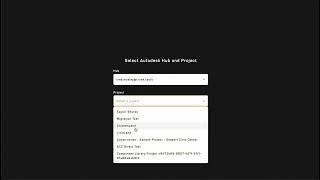
- Select a hub and a project
- Click import project
Import Modules in Trunk Tools
- Navigate to https://integration.trunktext.com/
- Sign in
- Click the project name in the top left corner
- Click Manage [project name]
- Click the integrations tab
- Click on the row for the Autodesk integration
- On the left side of the screen, you will see a list of various ACC modules (documents, RFIs, Submittals, etc)
- Click on a module and turn on the toggle to start the module import
- The files will start to be imported into the Trunk Tools workspace, and you will be able to see them in the module view
Usage Instructions
To ensure a smooth onboarding experience, the integration is set up collaboratively with the Trunk Tools team. During an onboarding call, a Trunk Tools representative works directly with the customer to configure the Autodesk connection, review project structure, and bring the integration fully online. This guided setup ensures the correct data sources are connected and aligned with the customer’s workflows from day one.
During setup and at any time thereafter, TrunkText allows customers to control which Autodesk entities are synchronized. Teams can enable or disable specific data types—such as RFIs, submittals, drawings, or other project content—based on their needs. This selective synchronization ensures TrunkText only processes the information that is relevant to the project, reducing noise and keeping analysis focused on what matters most.
Once connected, TrunkText automatically monitors selected Autodesk data as it is created, updated, versioned, or reorganized. Behind the scenes, TrunkText’s AI engine continuously analyzes project documents to understand context, relationships, and changes across files. Rather than acting solely as a chatbot or search tool, TrunkText works proactively in the background to review documents, surface issues, identify inconsistencies, and keep teams aligned with the latest project information—without requiring manual document review.
Users can interact with TrunkText by asking natural-language questions to quickly retrieve accurate, actionable answers grounded in the most relevant project documents. In addition, TrunkText supports automated workflows such as submittal reviews against specification requirements, document comparisons, summaries, and other purpose-built agents that help reduce rework, improve decision-making, and streamline daily project operations.
Screenshots


Commands
Installation/Uninstallation
Additional Information
Known Issues
Contact
Author/Company Information
Support Information
For general support inquiries, please get in touch with support@trunk.tools. Customers with an active Trunk Tools account will also be assigned a dedicated representative who serves as their primary point of contact for ongoing support, questions, and coordination. While your assigned representative should be your go-to for account-specific needs, the support email is always available for general inquiries.
Version History
| Version Number | Version Description |
|---|---|
|
1.0.0 |
Initial release |
