
Fuzor Web Viewer
, EnglishGeneral Usage Instructions
Fuzor Web Viewer App Manual
Requirements
The Fuzor Web Viewer App requires a valid Fuzor Web Viewer link to function.
How to Generate a Fuzor Web Viewer Link
- Open Fuzor 2026 VDC, Construction Pro, or Ultimate on your PC and load your project file.
- From the application menu, select Fuzor Cloud Links.
- Click Upload Current Project to Cloud.
- Enter a file name and click Create and Upload.
- Fuzor will automatically generate a link and preview the file in your browser.
- The Fuzor Web Viewer link is now available to share with your team.
How to Open the Fuzor Web Viewer Link in a Browser
No installation or setup is required. Anyone with the link and password can access the cloud file.
- Copy and paste the link into your browser.
- Enter the password.
How to Create Issues in the Fuzor Web Viewer and Sync to Autodesk Construction Cloud (ACC)
Note: Please install the Fuzor Web Viewer App in Autodesk Construction Cloud before creating issues.
Once the Fuzor Web Viewer is loaded in your browser, follow these steps:
- Click the Pen button to enable the Ticket Manager.
- Select Autodesk Login to sign in to Autodesk Construction Cloud.
- Log in using your Autodesk Construction Cloud credentials.
- Click Allow to authorize the application.
- Select a project (ensure the project’s Docs module is enabled).
- A list of projects will appear. Choose your project and click Open Project.
- Once opened, a list of issues will be displayed.
- Click on a 3D object to open the issue creation interface.
- Click + Issue to create a new issue.
- Fill in the issue details.
- The issue will be created successfully.
- You can view the issue in the project’s Docs module.
A detailed manual is available at:
https://fuzor-manual.atlassian.net/wiki/spaces/FM26/pages/549421086/Fuzor+Web-based+Viewer
Screenshots


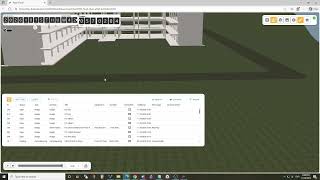
Commands
Installation/Uninstallation
Additional Information
Known Issues
Contact
Author/Company Information
Support Information
Version History
| Version Number | Version Description |
|---|---|
|
1.0.0 |
First release. |
