
SoftDraft Steel2KS Imperial
Win32 and 64, EnglishGeneral Usage Instructions
Please refer to the detailed instructions in the PDF User Manual included in the downloaded application.
Also refer to the Steel2K Video Tutorial on our website: http://www.softdraft.com/steel-shapes-videos.
Screenshots


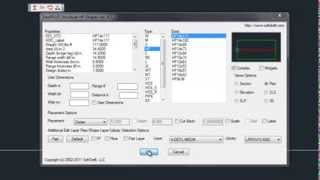

Commands
| Ribbon/Toolbar Icon | Command | Command Description |
|---|---|---|

|
Steel2K |
Main Structural Shapes dialog. Select shape type, size, view, section, plan, elevation, single line, or 3D. Press OK, shape attached to cursor (section view) for placement and rotation. |

|
SNOTE |
Allows the user to select a shape then adds the name of the steel shape in a text attribute. |

|
Cope |
Allows the user to cope the top or bottom flange of a steel shape shown in elevation view. |
Installation/Uninstallation
The installer that ran when you downloaded this app/plug-in from the Autodesk App Store will start installing the app/plug-in. OR, simply double-click the downloaded installer to install the app/plugin. You may need to restart the Autodesk product to activate the app/plug-in. To uninstall this plug-in, exit the Autodesk product if you are currently running it, simply rerun the installer, and select the "Uninstall" button. OR, click Control Panel > Programs > Programs and Features (Windows 7/8.1/10/11) and uninstall as you would any other application from your system.
Additional Information
You have 15 days to activate the software. When running in non-activated mode this dialog will only appear once the first time the program is executed in a new or existing drawing which indicates the number of Days Remaining before the program stops. Until you are ready to activate the software, you can run the software in the Non-Activated mode before it expires.
To activate the software, when you open a new or existing drawing a dialog appears prompting you to press the "OK" button to Activate Now. This takes you to the SoftDraft Activation dialog showing your License Code and an edit box for you to enter the License Key.
To receive your License Key, click on the License Code edit box, then copy the License Code. To avoid mistakes, we suggest that you copy it from this dialog and paste it into an email, instead of entering it with the keyboard, then send it to support@softdraft.com Please include the name the app was purchased under and the company name.
After we receive the email we will send the License Key back, usually within 24 hours, for you to enter into the dialog. Copy the License Key from the email into the License Key edit box area of the Activation dialog, then click "OK" to close the dialog.
An alert will show whether the license key was accepted or an incorrect key was entered. If you receive the "Incorrect License Key" alert, please notify tech support in an email to support@softdraft.com
Known Issues
Autodesk® AutoCAD LT® 2024 Version: Steel2K 2D LT 2024 - Software Plugins For CAD - Product (softdraft.com)
AutoCAD LT 2012-2023 Version: LT Steel Shapes AISC - Software Plugins For CAD - Product (softdraft.com)
Contact
Author/Company Information
Support Information
SoftDraft Software Support Policy
Email: support@softdraft.com
The purchase price of a new SoftDraft Software product includes:
Free technical support is available during the subscription.
Each computer requires a separate product license to be purchased for that computer.
The SoftDraft Software Subscription includes upgrades when available.
All updates/upgrades are electronically downloadable.
Version History
| Version Number | Version Description |
|---|---|
|
16.0.0 |
Removed Subscription dialog |
|
15.0.0 |
Update for Subscription Based App. |
