
Loft Faces
Win64, EnglishGeneral Usage Instructions
- Launch Autodesk® AutoCAD® or Autodesk® Civil 3D®
- Start the command LOFTFACES.
- When prompted, select the first solid.
- Select the face of the first solid to be used for the loft.
- Select the second solid.
- Select the face of the second solid.
- The add-in automatically generates a new solid by lofting between the selected faces.
Options:
- MERGE
- Controls how the newly created solid is combined with existing solids:
- None (default): No merge is performed.
- WithFirst: Merge the new solid with the first solid.
- WithSecond: Merge the new solid with the second solid.
- Both: Merge the new solid with both solids.
- COPY
- Copies the shape of the first selected face onto the second face location and performs the loft using this copied shape, ignoring the original shape of the second face.
Important Note:
It is strongly recommended to enable 3D Object Snap (F4) when selecting solid faces to ensure accurate face selection.
When using the COPY option and selecting three points on the first solid and three points on the second solid, the order of point selection is critical.
The points on the first and second solids must be selected in the same order, as demonstrated in the accompanying video; otherwise, the resulting loft may be incorrect.
Updates and further development of the application are planned. If you have questions, suggestions, criticisms, and commendations, please feel free to submit them via our website, web-advisor.com or directly to the email: civilengdev@gmail.com
Screenshots


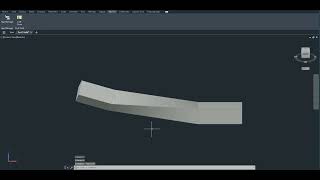
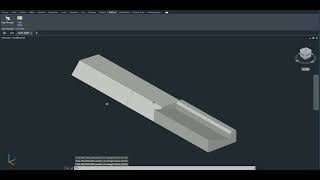
Commands
| Ribbon/Toolbar Icon | Command | Command Description |
|---|---|---|

|
LOFTFACES |
Command that creates a solid loft between selected faces of two existing solids. |
Installation/Uninstallation
The installer that ran when you downloaded this app/plug-in from Autodesk App Store will start installing the app/plug-in. OR, simply double-click the downloaded installer to install the app/plugin. To uninstall this plug-in, exit the Autodesk product if you are currently running it, simply rerun the installer, and select the "Uninstall" button. OR, click Control Panel > Programs > Programs and Features (Windows 10/11) and uninstall as you would any other application from your system.
Additional Information
Contact: civilengdev@gmail.com
Known Issues
- If the selected faces of the two existing solids are too far apart or lie in the same plane, the solid cannot be created and no geometry will be generated.
Contact
Author/Company Information
Support Information
Support is available through email civilengdev@gmail.com
Version History
| Version Number | Version Description |
|---|---|
|
1.0.0 |
Initial release |
