
AccuLibs
Win64, EnglishGeneral Usage Instructions
- Open any Autodesk® Fusion® document that contains CAM operations.
- Switch to the Manufacturing workspace.
- Click the AccuLibs button in the Manage toolbar group.
- On first launch, AccuLibs automatically scans for available cloud libraries. Check the boxes next to the libraries you want to track.
- Click Index to cache the selected libraries for fast lookups.
- Click Refresh to compare your document tools against the library. Each preset shows a status badge indicating whether it's been modified, updated by someone else, or in conflict.
- Use Push to send your document preset values to the library, or Pull to apply library values to your document.
- Click the Review button on any preset for a side-by-side parameter comparison before syncing.
AccuLibs fits into the Manufacturing workspace and is designed for daily use alongside your normal CAM workflow.
Screenshots
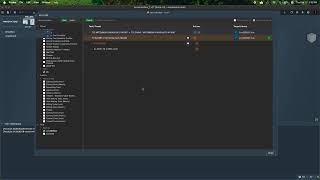


Commands
Installation/Uninstallation
Installation is automatic via the Autodesk App Store installer. The add-in is placed in the standard ApplicationPlugins folder:
Windows: %APPDATA%\Autodesk\ApplicationPlugins\AccuLibs.bundle
macOS: ~/Library/Application Support/Autodesk/ApplicationPlugins/AccuLibs.bundle
To uninstall, delete the AccuLibs.bundle folder from the above location, or use the Autodesk App Store uninstaller. No registry entries or system-level changes are made.
Additional Information
• AccuLibs works with all cloud-synced Fusion libraries (Project, Team Hub, and Asset libraries).
• Your license is automatically verified using your Autodesk account — no serial keys or manual activation required.
• The tool index cache is stored locally at ~/.acculibs/ and can be cleared from the menu inside the add-in.
• Target library preferences are saved per-document in Fusion's document metadata.
• Change history is stored inside each library tool, so it stays with the tool regardless of who opens it or from which document.
• Privacy policy: https://acculibs.race-ai.com/privacy.html
• Terms of service: https://acculibs.race-ai.com/terms.html
Known Issues
• Fusion may appear unresponsive when loading large cloud libraries. This is a Fusion limitation — AccuLibs will update the panel once loading completes.
• Hub libraries may require a manual refresh in Fusion's Tool Library manager (right-click → Refresh) before re-indexing in AccuLibs.
• Indexing large libraries can take time on the first run. Subsequent operations use the cached index for fast lookups.
Contact
Author/Company Information
Support Information
Email: acculibs@race-ai.com
Website: https://acculibs.race-ai.com
Manual: https://acculibs.race-ai.com/manual.html
For volume or enterprise licensing inquiries, contact us at the email above.
Version History
| Version Number | Version Description |
|---|---|
|
1.0.0 |
Fusion Add-in for syncing between documents and libraries. |
