
CAM Operation Renamer Trial
Win64, EnglishGeneral Usage Instructions
GETTING STARTED WITH CAM OPERATION RENAMER TRIAL
1. INSTALLATION
• Download and install from Autodesk App Store
• Restart Autodesk® Fusion®
• Add-in appears in: Manufacture → MILLING tab → CAM Operation Renamer (Trial) panel
2. FIRST USE
• Open a Fusion document with CAM operations
• Switch to Manufacture workspace
• Select operations you want to rename (or select a setup)
• Click "CAM Operation Renamer (Trial)" button in MILLING tab
3. RENAMING OPERATIONS
• Preview window shows: Current name → New name
• rows (SKIP): Cannot be renamed (see reason)
• Trial shows first 15 operations only
• Click "Apply" to rename
• Success message shows renamed count
4. TRIAL LIMIT
• Trial can rename up to 15 operations per run
• If you have more operations, they will be truncated in preview
• For larger projects, consider upgrading to Pro (up to 500 operations)
5. TIPS
• Select multiple operations for batch rename
• Select a setup to rename all operations inside
• Use "Save Log" to export diagnostics for support
• Preview is always safe - no changes until "Apply"
• Works 100% offline - no internet required.
Screenshots


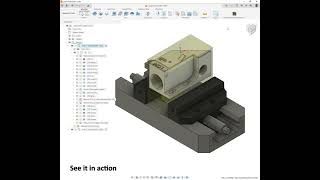
Commands
Installation/Uninstallation
INSTALLATION
METHOD 1: Via Autodesk App Store (Recommended)
- Visit Autodesk App Store
- Search "CAM Operation Renamer Trial"
- Click "Install"
- Follow on-screen instructions
- Restart Fusion.
VERIFICATION:
- Open Fusion → Manufacture workspace → MILLING tab
- You should see "CAM Operation Renamer (Trial)" panel
UNINSTALLATION
METHOD 1: Via Fusion
- Utilities → Add-Ins → Add-Ins tab
- Select "CAMOperationRenamer_Trial"
- Click "Remove"
- Restart Fusion.
METHOD 2: Manual Uninstallation
- Close Fusion
- Delete folder: %APPDATA%\Roaming\Autodesk\ApplicationPlugins\CAMOperationRenamer_Trial.bundle
- Restart Fusion
CLEAN REINSTALL (if issues):
- Uninstall (Method 2)
- Delete folder above
- Restart computer
- Install again (Method 1).
Additional Information
Known Issues
COMMON ISSUES AND SOLUTIONS:
ISSUE: "Showing first 15 operations (limit)"
SOLUTION: This is normal for Trial. You're seeing the first 15 operations.
- For more, upgrade to Pro (supports up to 500 operations).
ISSUE: "Security verification failed"
SOLUTION: Reinstall the add-in. If persists, contact support with log file.
ISSUE: Operations show as SKIP
REASONS:
- SUPPRESSED: Operation is suppressed in CAM - unsuppress to rename
- READ_ONLY: Operation is read-only - check if document is editable
- NO_TOOLPATH: Operation has no toolpath generated
- OTHER_SETUP: Operation is in different setup - select that setup.
ISSUE: "No operations found in selection"
SOLUTION:
- Switch to Manufacture workspace
- Select operations in browser or timeline
- Or select a setup to rename all operations inside
ISSUE: Cannot find add-in panel
SOLUTION: Look in Manufacture → MILLING tab (at the end, after SELECT panel)
- Panel name: "CAM Operation Renamer (Trial)"
EXPORT DIAGNOSTIC LOG:
- Manufacture → MILLING tab → "CAM Operation Renamer (Trial)" panel → "Save Log" button
- Save last_run.log to desktop
- Email to support@pkm-pro.pl for faster resolution.
Contact
Author/Company Information
Support Information
SUPPORT CHANNEL:
EMAIL SUPPORT: support@pkm-pro.pl
Response time: Within 1-2 business days
WHAT TO INCLUDE:
- Diagnostic log (use "Save Log" button)
- Fusion version (Help → About Fusion)
- Windows version
- Description of issue
- Steps to reproduce (if applicable).
Version History
| Version Number | Version Description |
|---|---|
|
1.6.50 |
First release version with feature-complete |
