
Wave Surface Generator
Win64, EnglishGeneral Usage Instructions
Go to SOLID workspce SOLIDS → CREATE drop dowb list
Launch the Add-In Script "WaveSurfaceGenerator" from the Menu. Simply select a face you would like to apply the wave design to. A sketch and a loft are created from the script that you can use in whatever manner you need. A common use case would be to replace a solid geometric face with the wave-generated face.
Screenshots
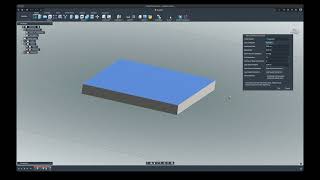


Commands
Installation/Uninstallation
Install:
1. Download the installer from the Autodesk App Store.
2. Right-click on the "Downloads" folder and select "Open in Finder".
3. Right-click on the downloaded "WaveSurfaceGenerator.pkg" -> "Open With" -> "Installer".
Uninstall:
You can unload the add-in without uninstalling it by clicking the "Stop" button when the add-in is selected in the list box on the "Add-Ins" tab of the "Scripts and Add-Ins" dialog.
Unchecking "Run on Startup" causes the add-in not to be loaded in future sessions of Autodesk® Fusion®.
- Navigate to the ./ApplicationsPlugins folder and select the app bundle you want to uninstall
- Either drag the app bundle to the Trash or right-click and select “Move to Trash”
- Right-click on the Trash-Can and select “Empty Trash”
- If you prefer keystrokes, you can also just select the app bundle and then hit Command+Delete to move the app to Trash, then empty the Trash and the app will be removed.
Additional Information
Known Issues
Contact
Author/Company Information
Support Information
Contact info@nasproto.com for help and support.
Version History
| Version Number | Version Description |
|---|---|
|
1.0.2 |
Updates: - Enhanced wave apex smoothing by adding edge guide rails for better boundary control - Use adaptive step size with fewer profiles for smoother loft |
