
Timeline manager
Mac OS, EnglishGeneral Usage Instructions
Add-in adds the "Timeline" panel to the "Utilities" toolbar. By default, only three essential commands are promoted to the panel, others are available in the dropdown menu. You can promote commands to the panel using the item's menu.
Below is the list of available commands. Note that no command alters the actual list of items (items aren't deleted nor added), only their grouping.
Group items
Create a new group(s) with selected items. While this is already possible using the built-in "Create group" command, it is here for convenience. Also, behavior slightly differs: in contrast to the built-in command, which is not available when selected items are not consecutive, this command creates a group from every run of consecutive items.
Ungroup items
Ungroups all selected groups and all groups containing selected items. The contents of groups are preserved.
Split group
Split existing groups into smaller ones at the points just before selected items.
Move to the right group
Puts selected items (they must be selected in a row) to the group right after them.
Move to the left group
Puts selected items (they must be selected in a row) to the group right before them.
Extend group right
Extends the group containing selected item one item to the right i.e. item to the right of the group is moved into the group.
Extend group left
Extends the group containing selected item one item to the left i.e. item to the left of the group is moved into the group.
Contract group right
Contracts group containing selected item one item on the right i.e. right-most item of the group is moved out of the group.
Contract group left
Contracts group containing selected item one item on the left i.e. left-most item of the group is moved out of the group.
Expand groups
Expands all selected groups.
Collapse groups
Collapse groups containing selected items.
Expand all groups
Expands all existing groups.
Collapse all groups
Collapses all existing groups.
Screenshots
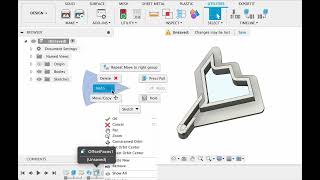


Commands
Installation/Uninstallation
To install the plugin, download the installer from the Autodesk App Store. Simply double-click the downloaded installer and follow the on-screen instructions to install the app/plugin.
Unload
- You can unload the add-in without uninstalling it by clicking the "Stop" button when the add-in is selected in the list box on the "Add-Ins" tab of the "Scripts and Add-Ins" dialog.
- Unchecking "Run on Startup" causes the add-in not to be loaded in future Autodesk® Fusion® sessions.
Uninstall
To uninstall this plug-in, exit the Autodesk product if you are currently running it. Simply rerun the installer and select the "Uninstall" button. You can uninstall it from Settings/Apps in Windows, just as with any other application on your system.
Additional Information
Known Issues
Contact
Author/Company Information
Support Information
Send feedback to kriomant@gmail.com
Version History
| Version Number | Version Description |
|---|---|
|
0.1.0 |
Initial Release. |
