
CAM Assist
Win64, EnglishGeneral Usage Instructions
CAM Assist completes up to 80 percent of a CAM program in minutes by using AI to automate the most repetitive and time-consuming parts of CNC programming.
To get started, open your part in Autodesk® Fusion® and switch to the Manufacturing workspace. Set up the part in the same way you normally would, including defining the work coordinate system, stock, and any required setups. Once the part is ready, click the CAM Assist button located in the Manufacturing tab to launch the CAM Assist workflow.
CAM Assist analyzes the part geometry and guides you through a simple, structured process to generate machining strategies. During this workflow, you can confirm key inputs such as machine configuration, tooling preferences, and machining intent. CAM Assist then uses AI and advanced computer science techniques to automatically generate professional machining strategies and toolpaths based on the geometry and selected constraints.
Within minutes, CAM Assist completes the majority of the CAM program for you. Toolpaths are created with practical sequencing and proven machining approaches, removing the need to manually define each operation from scratch. This significantly reduces the time spent on repetitive setup tasks and common decision-making.
Once generation is complete, CAM Assist exports the toolpaths directly back into Fusion. From there, you remain fully in control. You can review each operation, tweak parameters, edit toolpaths, add additional features, or apply any shop-specific adjustments as required. CAM Assist fits seamlessly into your existing workflow, allowing you to continue simulating, verifying, and post-processing exactly as you would with a manually created program.
CAM Assist is designed to support, not replace, the programmer’s judgment. Handling the routine and repetitive elements of CAM programming, it frees up time to focus on higher-value activities such as optimizing cycle times, improving surface finish, planning fixturing, and solving more complex manufacturing challenges.
By removing the boring and time-intensive parts of programming, CAM Assist helps manufacturers program faster, improve consistency, and move from design to production more efficiently, while maintaining confidence and control over the final CAM program.
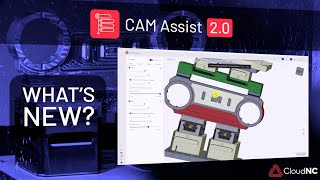
Screenshots


Commands
Installation/Uninstallation
CAM Assist is installed locally on the C drive of the user. Uninstall by deleting the CAM Assist folder from inside the Fusion Addin folder on your local drive.
Additional Information
Known Issues
Contact
Author/Company Information
Support Information
Visit our help-centre for any and all support issues.
Version History
| Version Number | Version Description |
|---|---|
|
2.0.5 |
CAM Assist for Autodesk® Fusion®. |
