
Batch Export Bodies
Win64, EnglishGeneral Usage Instructions
Go to utilities->Batch Export Bodies.
Choose "All" or "Selected Bodies" (in this last case, you have to select the bodies prior to using the add-in),
Then choose the file type (3mf, STL, OBJ) and the refinement level (high, medium, low) as you would in the standard export mesh option.
Click "Ok", choose your folder, and you're ready.
Screenshots
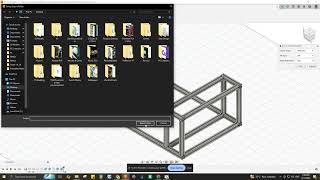


Commands
Installation/Uninstallation
Installation:
The installer that ran when you downloaded this app/plug-in from the Autodesk App Store will start installing the app/plug-in. Or, simply double-click the downloaded installer to install the app/plugin.
Uninstallation:
You can unload the add-in without uninstalling it by clicking the "Stop" button when the add-in is selected in the list box on the "Add-Ins" tab of the "Scripts and Add-Ins" dialog.
Unchecking "Run on Startup" causes the add-in not to be loaded in future Fusion sessions.
To uninstall this plug-in, exit the Autodesk product if you are currently running it, simply rerun the installer, and select the "Uninstall" button.
Or, you can uninstall it from 'Control Panel/Programs and Features' (Windows 10/11), just as you would uninstall any other application from your system.
Additional Information
Known Issues
Contact
Author/Company Information
Support Information
If you have any questions, please email us at rs@creationsrs.com.
Version History
| Version Number | Version Description |
|---|---|
|
1.0.0 |
Initial release |
