
Wood Working Wizard Pro
Mac OS, EnglishWood Working Wizard
Best-in-class Autodesk® Fusion® add-in for woodworking, enabling custom furniture design with powerful parametric tools, advanced nesting optimization, and intelligent cut list generation.
General Usage Instructions
Screenshots
Installation/Uninstallation
Known Issues
Contact
Version History
General Usage Instructions
Step 1: Design Creation
- Launch the WoodWorking Wizard from Fusion's Create panel
- Select project type
- Enter dimensions and material specifications
- Choose interior options (shelves, drawers, doors)
- Wizard automatically creates a parametric 3D model.
Step 2: Cut List Generation
- Select bodies from your design
- Choose measurement units (mm/cm/in)
- Enable nesting layout optimization
- Configure sheet sizes and cutting parameters, system automatically recognizes materials and thicknesses.
- Generate a comprehensive CSV cut list with quantities.
- Adding the price per sheet, the system also calculates the prices.
Step 3: 3D Visualization
- View optimized sheet layouts in 3D
- Inspect part placement and spacing
- Verify material assignments and quantities
- Each part comes with labels
- Export for production planning.
Step 4: Production
- Use the cut list for material ordering
- Follow the 3D layout for efficient cutting
- Reference part dimensions for assembly
- Track material usage and waste.
Screenshots


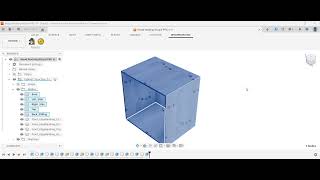
Commands
Installation/Uninstallation
Install:
- Download the installer from the Autodesk App Store.
- Install the add-in
- Enable it from the dedicated section in Fusion.
Uninstall:
- You can unload the add-in without uninstalling it by clicking the "Stop" button when the add-in is selected in the list box on the "Add-Ins" tab of the "Scripts and Add-Ins" dialog.
- Unchecking "Run on Startup" causes the add-in not to be loaded in future sessions of Fusion.
- Navigate to the ./ApplicationsPlugins folder and select the app bundle you want to uninstall
- Either drag the app bundle to the Trash or right-click and select “Move to Trash.”
- Right-click on the Trash Can and select “Empty Trash.”
- If you prefer keystrokes, you can also just select the app bundle and then hit Command+Delete to move the app to Trash, then empty the Trash and the app will be removed.
Additional Information
Known Issues
The app is not signed digitally, so it may cause security warnings during installation.
Those warnings are due to the lack of a signature, but the tool is not collecting or interacting with your local system in any way.
It is self-contained and stand-alone.
Contact
Company Name: Wood Working Wizard
Company URL: https://www.woodworkingwizard.it/
Support Contact: info.woodworkingwizard@gmail.com
Author/Company Information
Wood Working Wizard
Support Information
In case of help needed, please reach out to us at:
Version History
| Version Number | Version Description |
|---|---|
|
1.0.0 |
Initial Release |
