
Simple Sheet Metal DXF
Win64, EnglishGeneral Usage Instructions
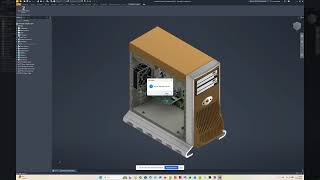
Workflow: The application is designed to be a seamless part of the design-to-production workflow. Once the sheet metal assembly design is completed in Autodesk® Inventor®, the user can initiate the bulk export process without opening each part individually.
Step-by-Step Usage:
- Setup: Click the command button on the 'TrafoMech Yazilim' ribbon tab to open the configuration dialog. Define your output folder, file naming rules (using iProperties), and DXF export settings (layer names, etc.).
- Execution: While an Assembly (.iam) file is active, click the 'Simple Sheet Metal To DXF' button.
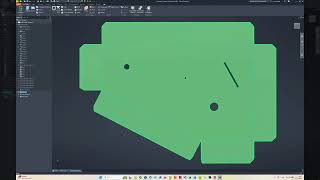
- Processing: The add-in automatically scans the assembly for sheet metal components, generates their flat patterns (if they don't exist), and exports them as DXF files to the designated folder.
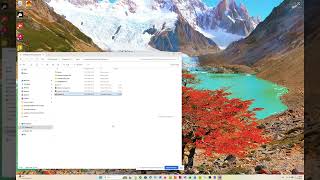
- Result: All production-ready DXF files are organized and named according to your company standards in seconds, eliminating manual 'Save Copy As' tasks.
Screenshots


Commands
| Ribbon/Toolbar Icon | Command | Command Description |
|---|---|---|

|
Simple Sheet Metal To DXF |
Starts the DXF export process for the active sheet metal part using your predefined settings. The button is located on the 'TrafoMech Yazilim' Ribbon tab, within the 'Sheet Metal Command' panel. It is accessible and functional while an Autodesk Inventor Assembly (.iam) file is active. |
Installation/Uninstallation
Installation: Run the provided installer (SimpleSheetMetalToDXF_Setup.msi).
The installer will guide you through the steps and automatically place the add-in files into the following directory: %AppData%\Autodesk\ApplicationPlugins\SimpleSheetMetalToDXF.bundle
Once the installation is complete, restart Autodesk Inventor to activate the add-in.
Uninstallation: You can uninstall the product using any of the following methods:
Open the Windows Control Panel > Programs and Features (or Settings > Apps), find "SimpleSheetMetalDXF" in the list, and select Uninstall. Run the original installer (.msi) again and select the Remove option. Alternatively, you can manually delete the SimpleSheetMetalToDXF.bundle folder from the
%AppData%\Autodesk\ApplicationPlugins directory.
Please ensure Autodesk Inventor is closed before attempting to uninstall.
Additional Information
Key Specifications & Features:
- Smart Filtering: The add-in automatically identifies Sheet Metal components within an assembly and skips standard parts (bolts, nuts, etc.) to ensure a clean export process.
- Automatic Flat Pattern Generation: If a part does not have an existing flat pattern, the add-in can generate it automatically (provided the part is valid sheet metal).
- Customizable Naming: Supports iProperties for file naming, allowing you to match your company’s existing documentation standards.
- Layer Control: High-quality DXF output with customizable layer settings for laser or plasma cutting compatibility.
Requirements:
- Supported Inventor Versions: 2025, and 2026.
- Requires .NET Desktop Runtime 8.0 (automatically checked during installation).
Support Links:
- Video Tutorial: https://youtu.be/g1TiU3RMIdw
- Online Documentation: A detailed PDF help guide is included in the installation folder.
Note: For any custom feature requests or bulk licensing inquiries, please feel free to contact us via the support email provided.
Known Issues
- Invalid Flat Patterns: If a part has complex geometry that prevents Inventor from creating a flat pattern (e.g., non-unfoldable surfaces), the add-in will skip that part and report it.
- Multi-Lump Solids: Parts containing multiple separate solid bodies (multi-lumps) within a single file may not export correctly if the flat pattern is ambiguous.
- Read-Only Files: The application may encounter issues when attempting to generate flat patterns for files marked as 'Read-Only' or those stored in a locked Vault environment without being checked out.
- Active File Requirement: An assembly file must be fully loaded and active for the add-in to process the components correctly.
Note: We are continuously working on updates to improve performance and compatibility with complex sheet metal designs.
Contact
Author/Company Information
Support Information
Email Support: You can reach us at [trafomech@gmail.com] for any technical questions, bug reports, or feature requests. We aim to respond to all inquiries within 24-48 hours.
Support Hours: Monday to Friday, 09:00 - 18:00 (GMT+3).
Information to Include: To help us assist you faster, please include the following in your email:
- A brief description of the issue.
- Your Autodesk Inventor version (e.g., Inventor 2025,2026).
- Any error messages or screenshots of the issue.
Version History
| Version Number | Version Description |
|---|---|
|
1.0.2 |
Initial Release: Automate your flat pattern exports with a simple 2-click workflow. |
