
P3D Clash Manager
Win64, EnglishGeneral Usage Instructions
Product Workflow
Step 1: Setup
- Open your AutoCAD Plant 3D drawing and launch Clash Manager
- Click "Add Test" and give it a name (e.g., "Piping vs Structure")
Step 2: Configure (Rules Tab)
- Check boxes to ignore clashes in same file/layer/pipeline group
- Set Accuracy (0.1-10) and Min Overlap tolerance
- Toggle "Include insulation" if needed
- Choose where to save results
Step 3: Run Test
- Click "Run Test" button
- Progress bar shows completion status
- Clash counts appear in dashboard when finished
Step 4: Review (Results Tab)
- View all detected clashes with color-coded status
- Click to zoom to any clash in your drawing
- Edit names and add descriptions
Step 5: Manage
- Update status for each clash: New → Active → Reviewed → Approved → Resolved
- Assign clashes to team members
- Dashboard automatically updates counts by status
Step 6: Report (Report Tab)
- Select which data to include (dates, assignments, descriptions, etc.)
- Filter by clash status
- Click "Write Report" to generate instantly
Step 7: Maintain
- Reset or delete tests as needed
- Create multiple tests for different scenarios
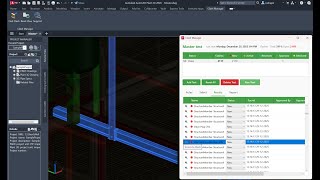
Screenshots


Commands
| Ribbon/Toolbar Icon | Command | Command Description |
|---|---|---|

|
P3DClashManager |
Show UI for checking clashes. |

|
P3DClashCleanup |
Cleanup clash visualization for the current drawing by resetting layers (restore transparency), removing Solid3d intersection boxes, and unhighlighting any previously highlighted items. |

|
P3DSupport |
Opens the default email client to send a support request to support@astraplant.com. |
Installation/Uninstallation
The installer that ran when you downloaded this app/plugin from the Autodesk App Store will start installing the app/plug-in. Or, simply double-click the downloaded installer to install the app/plugin.
You may need to restart the Autodesk product to activate the app/plugin.
To uninstall this plugin, exit the Autodesk product if you are currently running it, simply rerun the installer, and select the "Uninstall" button. Or, click Control Panel > Programs > Programs and Features (Windows 10/11) and uninstall as you would any other application from your system.
Additional Information
Known Issues
Contact
Author/Company Information
Support Information
Please contact me via Email: support@astraplant.com.
Version History
| Version Number | Version Description |
|---|---|
|
1.0.0 |
Initial release |
