
ExcelLink
Win64, EnglishGeneral Usage Instructions
ExcelLink fits directly into the standard Revit project workflow as a parameter data management tool.
TYPICAL WORKFLOW:
- Open your Revit project and launch ExcelLink from the Add-ins tab.
- Select one or more element categories from the category list on the left. The available parameters load automatically.
- Use the filter buttons (All / Instance / Type / Read-Only) to narrow the parameter list, then move your desired parameters to the Export list using the arrow buttons. Drag and drop to set the column order.
- Set your options: include linked documents, include type parameters, or consolidate all categories into a single sheet.
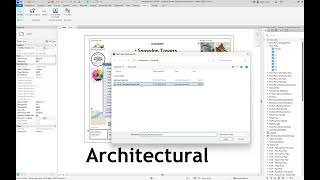
- Click Export, choose a file location, and open the resulting Excel workbook.
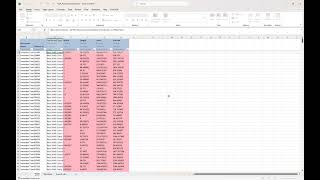
- Review or edit parameter values in Excel. Only instance parameters that are not read-only can be written back to Revit. Do not modify or delete row 1 (hidden metadata) or column A (Unique ID) — these are required for import to function correctly.
- Click Import in ExcelLink, select the Excel file, and the updated values are written directly to the matching Revit elements.
CONFIGURATION REUSE
- Save your category and parameter selection to a configuration file for repeated use across sessions or projects.
OFFLINE USE
- ExcelLink validates your license online but supports offline use for up to 30 days from the last successful connection.
Screenshots

Commands
Installation/Uninstallation
The installer that ran when you downloaded this app/plug-in from Autodesk App Store will start installing the app/plug-in. OR, simply double-click the downloaded installer to install the app/plugin.
To uninstall this plug-in, exit the Autodesk® product if you are currently running it, simply rerun the installer, and select the "Uninstall" button. OR, click Control Panel > Programs > Programs and Features (Windows) and uninstall as you would any other application from your system.
Additional Information
System Requirements
Revit 2022, 2023, 2024, 2025, 2026 or 2027
Windows 10 or Windows 11 (64-bit)
Microsoft Excel (for viewing exported files)
Internet connection required for license activation (offline grace period: 30 days)
Excel File Format
Output format: .xlsx (Excel 2007 and later)
Row 1 contains hidden metadata used for import — do not modify
Column A contains the element Unique ID — do not modify
Color coding: pink = read-only, yellow = type parameter, red = missing, gray = linked element
Known Limitations
Parameters from linked documents can be exported, but not imported back
Read-only and type parameters are exported for reference only and cannot be written back
Trial mode limits export to 10 elements per category
Support
For license requests, bug reports, and feature suggestions:
ahuzuner@gmail.com
Privacy Policy
https://halukuzuner.github.io/revit-excel-link/privacy-policy.html
Known Issues
Double parameters are exported with 6 decimal digits.
Contact
Author/Company Information
Support Information
For any questions, contact ahuzuner@gmail.com
Version History
| Version Number | Version Description |
|---|---|
|
1.0.0 |
Initial release. |
