
Electrical Panels Manager
Win64, EnglishGeneral Usage Instructions
- Launch Autodesk® Revit® (2021-2026) and open your project.
- Ensure you’re logged into your Autodesk account.
- Go to the Add-Ins tab and click the "Electrical Panels Manager" icon.
- Select electrical panels (e.g., panelboards) in the Revit model.
- From the panels list on the left, choose which panel to edit. The parameters to edit are on the right.
- Edit the desired panels all at once, then hit the save button.
- Go to the properties panel or panel schedules to check that the values you entered are synchronized.
Screenshots



Commands
Installation/Uninstallation
The installer that ran when you downloaded this app from the Autodesk App Store will start installing the app. OR, simply double-click the downloaded installer to install the app. You may need to restart Revit to activate the app. To uninstall this plug-in, exit Revit if you are currently running it, simply rerun the installer, and select the "Uninstall" button. OR, click Control Panel > Programs > Programs and Features (Windows 10/11) and uninstall as you would any other application from your system.
Additional Information
Known Issues
- Parameters belonging to linked model elements are read-only and cannot be edited from the host model (this is a Revit API limitation).
- When inspecting a linked model element, clicking Show in Revit selects the
RevitLinkInstancerather than the individual element in Revit's Properties panel. - View navigation (double-click to open) is only available for host model views; linked model views cannot be opened.
- Editing certain system-level or read-only Built-in parameters may fail silently; the status bar will report the failure count.
- Global parameters and shared parameter definitions are displayed for reference only and are not directly editable through this tool.
- The add-in requires an active internet connection at launch for entitlement verification. If the network is unavailable, the tool will not open.
Contact
Author/Company Information
Support Information
If you need any support,
Reach out here: othmanmuhammad95@gmail.com
or here: My LinkedIn
or here: TELEGRAM.
Version History
| Version Number | Version Description |
|---|---|
|
5.0.0 |
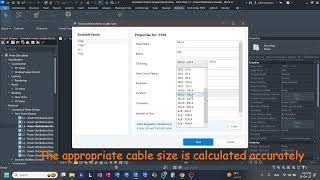
New Features Zero-Click Panel Detection No more selecting panels with your mouse. Open the tool and it automatically finds every electrical panel in your active view — whether it's a floor plan, section, or 3D view. Switch to whole-project mode to scan across all levels at once. Auto-Naming by Level Panels now get their names automatically based on the level they are placed on. Set your prefix, separator, and starting index once — the tool handles the rest, grouped and sequenced by floor reference. Auto-Rating (Mains & CB) CB rating and Mains are now calculated automatically from the load connected to each panel. Select multiple panels and calculate all of them in one click. No spreadsheet, no manual lookup, no mistakes. Cable Sizer — Now a Dedicated Tab The cable sizing calculator has been moved to its own independent tab, giving it more space, cleaner inputs, and a more focused workflow. Select a panel, enter the run length, and get a full IEC 60364-5-52 result instantly. Clipboard Confirmation A visual "Copied!" confirmation now appears whenever you copy a value — no more guessing whether it worked. Improvements Rebuilt on C# 12 The entire codebase has been refactored to C# 12, bringing better memory management, improved startup time, and significantly more stable behavior under large models. Stronger Input Validation Rating fields now catch invalid entries before they cause errors — with clear, immediate feedback instead of silent failures. |
|
1.1.0 |
New features in this version: 1. Automatic selection of the panels from the opened view (2D/3D), i.e., no longer need to select anything by mouse. 2. Auto-Naming feature is added to automatically give your panels names based on the level at which they are referenced. 3. Auto-Rating feature is now alive to facilitate your calculation step. CB and mains ratings are now calculated based on the load connected to the panel. 4. Cable Sizing Feedback: Added color-coding (Blue/Orange) to indicate standard vs. non-standard ratings. 5. Clipboard: Added visual "Copied!" confirmation. Improvements: 1. Performance: Refactored codebase to C# 12 for better stability. 2. Validation: Enhanced input validation for rating fields. |
|
1.0.0 |
This is the very beginner version of the Electrical Panels Manager that enables users to manually select but automatically edit the panels' parameters. The upcoming version will do both steps automatically. |
