
AUTOM8LABS MCP Connector
Win64, EnglishAUTOM8LABS
Connect AI Claude or Cursr to Autodesk® Revit®. Query elements, parameters, views, and more using natural language conversations.
General Usage Instructions
Screenshots
Installation/Uninstallation
Known Issues
Contact
Version History
General Usage Instructions
- Install MCP Connector from the Autodesk App Store
- Launch Revit and open a project
- Navigate to the Add-Ins tab and find the AUTOM8LABS panel
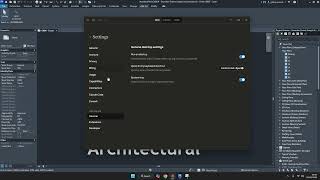
- Click "Enable MCP" to auto-configure your AI app (Claude Desktop or Cursor)
- Restart your AI application
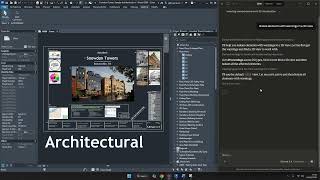
- Start a conversation — ask about your model in natural language.
- The AI app communicates with Revit through a local bridge process.
- All communication stays on your machine. MCP
- Connector provides 36 read-only query tools — it will not modify your model.
Typical workflow:
- Ask about project info, warnings, or element counts
- Query elements by category, family, type, or level
- Browse views, sheets, schedules, and families
- Save and recall selection sets for repeated queries
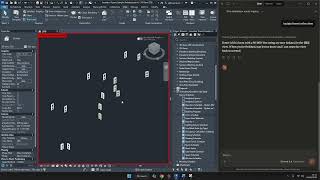
- Hide or isolate elements to review issues visually
Screenshots

Commands
Installation/Uninstallation
Installation:
- MCP Connector installs automatically via the Autodesk App Store.
- The bundle is placed in:%APPDATA%\Autodesk\ApplicationPlugins\MCPConnector.bundle\
- It registers as an add-in for all installed Revit versions (2022-2026).
- After installation, click "Enable MCP" in Revit (Add-Ins tab > AUTOM8LABS panel) to configure your AI app.
Uninstallation:
Use the Autodesk App Store or Autodesk Desktop App to uninstall. Alternatively, delete the MCPConnector.bundle folder
from %APPDATA%\Autodesk\ApplicationPlugins\. AI app configuration entries can be removed from:
- Claude Desktop: %APPDATA%\Claude\claude_desktop_config.json
- Cursor: %USERPROFILE%\.cursor\mcp.json
Additional Information
Known Issues
- Claude Desktop must be restarted after initial setup for the MCP connection to activate.
- If Revit is not running when the AI app starts, the connection will fail. Start Revit first, then restart the AI app.
- Worksharing features (worksets) require an active workshared document.
- Large models with 50,000+ elements may experience slower query responses for broad element searches. Use category, level, or view filters to narrow results.
Contact
Author/Company Information
AUTOM8LABS
Support Information
Documentation: https://autom8labs.io/products/mcp-connector/docs/
Email: info@autom8labs.io
Version History
| Version Number | Version Description |
|---|---|
|
1.0.0 |
First Release. |
