
XportOne - Batch PDF & DWG Export
Win64, EnglishGeneral Usage Instructions
XportOne simplifies and accelerates your Revit documentation workflow by allowing you to export multiple sheets to PDF and DWG simultaneously in a single, unified process. Instead of exporting one sheet at a time, the add-in gives you full control over your deliverables while maintaining consistency and accuracy across your entire project.
Once installed, XportOne appears under the “Add-Ins” tab in Revit, inside the “XportOne” panel. Clicking the XportOne button opens the main application window, where you can select one or more sheets from your project to include in the export batch. The interface is organized and intuitive, making it easy to review all sheets, adjust export settings, and save your configuration for future use.
Within the export window, you can:
• Choose between PDF, DWG, or both output formats.
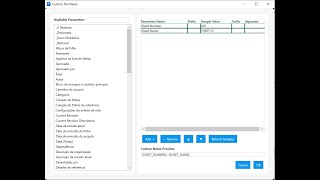
• Apply smart naming rules that automatically generate filenames based on Revit parameters such as Sheet Number, Sheet Name, Project Name, or any custom field.
• Define the destination folder and whether to create subfolders for each format or discipline.
• Select a DWG export setup directly from your Revit settings to ensure that layers, line weights, and text styles follow your project standards.
• Save or load custom export profiles so you can quickly re-apply preferred configurations across multiple projects.
After configuring all parameters, simply click Export. XportOne will process the selected sheets automatically, creating perfectly organized output files while preserving naming and structural consistency. The process runs directly within Revit and requires no additional software or dependencies.
By replacing repetitive manual steps with one streamlined workflow, XportOne ensures your deliverables are always accurate, consistent, and ready for client submission or internal archiving.
Screenshots


Commands
Installation/Uninstallation
The installer that ran when you downloaded this app from the Autodesk App Store will start installing the app. OR, simply double-click the downloaded installer to install the app. You may need to restart Revit to activate the app. To uninstall this plug-in, exit Revit if you are currently running it, simply rerun the installer, and select the "Uninstall" button. OR, click Control Panel > Programs > Programs and Features (Windows 10/11) and uninstall as you would any other application from your system.
Additional Information
Known Issues
- In some environments, Revit may take a few extra seconds to initialize the add-in panel after startup.
- If exporting to a network drive with limited permissions, write access errors may occur.
- When exporting many large sheets simultaneously, Revit might briefly freeze during DWG conversion; this is expected behavior.
- No known issues affecting data integrity or export accuracy.
Contact
Author/Company Information
Support Information
For technical support, feature requests, or bug reports, please contact:
Melo Estrutural – XportOne Support
Email: melo.estrutural@gmail.com
Support is available Monday to Friday, 9:00–17:00 (GMT-3).
We aim to respond to all inquiries within 24 hours.
Version History
| Version Number | Version Description |
|---|---|
|
1.0.0 |
Initial public release of XportOne — the fast, reliable PDF and DWG batch exporter for Revit. • Exports multiple sheets at once in PDF and DWG formats • Customizable file naming patterns using Revit parameters • Profile system to save and reuse export settings • Integrated modern interface with dark/light themes • Full compatibility with Revit 2025 – 2026 (Win64) • Uses Autodesk Entitlement API for license validation |
