
Sentinel QC with MCP AI Assistant for Revit®
Win64, EnglishGeneral Usage Instructions
DESKTOP PLUGIN
Open Autodesk® Revit® and click the Terrascape tab in the ribbon, then click the Sentinel icon. The Sentinel panel appears with a "Sign In & Load QC Module" button. Click it — your browser opens to the sign-in page. After you authenticate, the browser shows a confirmation message, and you can close it. Back in Revit, the QC module downloads and loads automatically.
The panel has four tabs:
- Profiles — download the Excel standards template, fill in your firm's standards, and import as a new profile. Or use the built-in Sentinel baseline to start immediately
- Inspect — select a standards profile and click Inspect to scan the active model
- Results — review findings, filter by fixable/blocked/report-only, approve patches, apply fixes, rollback if needed
- Receipts — view the full audit trail of every inspection, apply, and rollback with tamper-evidence verification
MCP AI ASSISTANT VIA CLAUDE or CURSOR DESKTOP
Sentinel is one of the first MCP-integrated apps on the Autodesk App Store. After the QC module loads, Sentinel detects Claude Desktop /Cursor Desktop automatically and offers one-click configuration. Click "Configure Claude" or "Configure Cursor" to connect Sentinel. If not immediately visible, restart Claude or Cursor and the connection is live.
Open the Claude or Cursor Desktop and start talking to your Revit model. You can run the QC workflow conversationally:
- "What can you see right now?" — Sentinel checks the connection, reads the active model, and reports standards status
- "Use the office template as my standard" — extracts standards from a reference model automatically, no spreadsheet needed
- "Inspect this model" — scans against the active profile and summarizes findings with severity and fix availability
- "Apply the fixes" — executes approved patches with a full audit receipt
- "Roll that back" — reverses the changes atomically
- "Why is that issue blocked?" / "Draft a message to the architect" — ask questions about specific findings
MCP AI ASSISTANT VIA Others:
- More connections coming soon.
Note: The MCP AI assistant is optional. The desktop plugin works fully without it. Both surfaces use the same governed workflow — approval gates, rollback, and receipts are identical.
Screenshots


Commands
| Ribbon/Toolbar Icon | Command | Command Description |
|---|---|---|

|
SentinelQC |
Opens the Sentinel QC panel inside Revit. From this panel, you can sign in, load the QC module, inspect models against your firm's standards, review findings with severity and fix availability, approve and apply corrections, rollback changes atomically, and view tamper-evident audit receipts. The panel also detects whether Claude or Cursor is installed and offers one-click MCP configuration for AI-assisted workflows. Once connected, Claude and Cursor become an intelligent BIM assistant that can run the full QC workflow through natural conversation — one of the first MCP integrations available for Revit. |
Installation/Uninstallation
Close Revit if it is open. Install Sentinel Revit QC from the Autodesk App Store — this places the Revit plugin, QC Module Tools loader, and MCP server in a single package. No separate downloads are needed.
Open Revit and click the Terrascape tab in the ribbon, then click Sentinel to open the app. On first launch, click "Sign In & Load QC Module." Your browser opens for authentication. After sign-in, the QC Module loads automatically.
To enable the AI assistant: install Claude Desktop / Cursor Desktop (free from claude.ai/download, or cursor from https://cursor.com/download). Sentinel detects it and offers one-click MCP configuration. Restart Claude / Cursor Desktop after configuring.
To uninstall, use Windows Add or Remove Programs. Profiles and receipts are stored locally in AppData and are preserved after uninstall.
Additional Information
MCP INTEGRATION
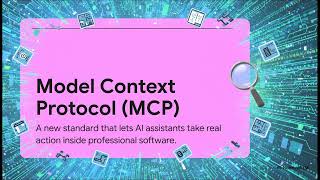
Sentinel is one of the first MCP-integrated apps available on the Autodesk App Store. MCP (Model Context Protocol) is an open standard that lets AI assistants connect to external tools and data sources. Sentinel uses MCP to connect AI Assistants like Claude or Cursor directly to the running Revit model through the Sentinel plugin.
When connected, Claude or the cursor becomes an intelligent BIM assistant that can inspect models, explain findings, apply fixes, extract standards from reference models, and manage the full QC workflow through natural conversation. The AI assistant does not bypass any safety checks — the same governed execution model (Inspect → Preview → Apply → Rollback → Receipt) applies regardless of control surface.
Claude /Cursor Desktop is optional. The Revit plugin works fully without it. To set up, install Claude Desktop from claude.ai/download, click "Configure Claude" in the Sentinel panel, and restart Claude Desktop. For Cursor, cursor.com/get-started, click "Configure Cursor" then restart Cursor.
ROADMAP
Sentinel launches with capabilities covering model intake and project setup, and common standards enforcement tasks. Seventy-two document-level capabilities are coming soon across views, sheets, annotations, graphics standards, content management, export configuration, and model health diagnostics. New capabilities are released progressively over the months following launch and plug into existing profiles with no new workflows to learn.
COMPATIBILITY
- Current Revit 2026 (2025 and 2024 coming soon)
- Windows (64-bit)
- Internet connection required for sign-in and QC module download
- All inspection and remediation runs deterministically locally inside Revit
- AI never touches your model.
NETWORK CALLS
All network calls are user-initiated. No calls occur in the background, on a timer, or without explicit user action. After the QC module loads, all inspection and remediation runs locally inside the Revit process.
Known Issues
Authentication is required each time Revit is opened.
The Claude Desktop "Open" button may open claude.ai in a web browser instead of the desktop app on machines where Claude is installed in a non-standard location. The MCP connection still works — open Claude Desktop manually from the Start menu.
After clicking "Configure Claude" for the first time, Claude Desktop must be restarted for the MCP connection to take effect.
"Similarly, Cursor Desktop can be configured."
Contact
Author/Company Information
Support Information
Contact us seven days a week with support questions. 24-hour response time.
Email: sentinel@terrascape.ai
For bug reports, screenshots, or screen recordings, help us resolve issues faster.
Version History
| Version Number | Version Description |
|---|---|
|
1.0.0 |
Initial Release - Discover capabilities for model intake and standards enforcement. Governed workflow: Inspect → Preview → Apply → Rollback with tamper-evident audit receipts. Nothing applies without explicit approval. Everything is reversible. Desktop plugin with full tab-based UI inside Revit. Optional Claude Desktop AI assistant integration via MCP — one of the first MCP-integrated apps on the Autodesk App Store. Standards can be defined via Excel workbook or extracted from a reference model through the AI assistant. |
