
UnoTool AutoSheet Generation
Win64, EnglishGeneral Usage Instructions
1. Open Autodesk® Revit® 2025 or 2026.
2. Click on the UnoTools tab in the Revit ribbon panel.
3. Click on the Sheets button in Auto Sheet Generation Panel.
4. Click on Add New Sheet Enter Sheet Number and Name, then click on Ok.
5. Use Existing or Load feature to Load Existing or New Sheet sizes then Select a Sheet Size.
6. Select Plans from Current Document from Dropdown below Views in Document Panel.
7. Select Single or Multiple views and click on Add, repeat this Process until you select all required views form required Plans.
8. You can Remove by selecting views in Selected Views Field and click on remove.
9. Click On Save, you can view the selection in New Sheets Data Before Generation Field.
10. You can use Edit and Remove features for modifying selections.
11. Click on "?" symbol on Top-Left corner of the UI form for User Manual.
12. Follow the instructions provided in the UI to proceed.
13. For further assistance:
· Refer to the Help Documentation (Hover over the UI page and press F1 or click on the Help button).
· Watch the Execution Video for a step-by-step guide.
Screenshots
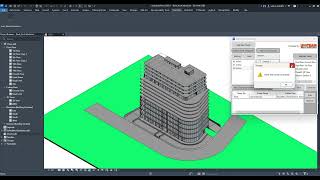


Commands
Installation/Uninstallation
Run the installer of this app/plug-in that you downloaded from the Autodesk App Store. OR, simply double-click the downloaded installer to install the app/plugin. Make sure that the Autodesk product is completely closed when running the installer.
To uninstall this plug-in, exit the Autodesk product if you are currently running it, simply rerun the installer, and select the "Uninstall" button. OR, click Control Panel > Programs > Programs and Features (Windows 10/11) and uninstall as you would any other application from your system.
Additional Information
Known Issues
Contact
Author/Company Information
Support Information
Please contact:
email: apps@unoteams.com
Version History
| Version Number | Version Description |
|---|---|
|
1.0.0 |
Intial Release |
|
1.1.0 |
Intial Release |
