
CRXAI
Win64, EnglishGeneral Usage Instructions
CRXAI is accessed directly from the Revit ribbon after installation. The add-in is designed to fit naturally into existing Revit workflows and does not require changes to standard modeling or documentation processes.
- Open a Revit project and navigate to the desired view, sheet, or camera perspective.
- Launch CRXAI from the Revit ribbon panel.
- Select the active view or user-defined Revit elements as required by the workflow.
- Configure the AI generation options within the CRXAI interface.
- Initiate the generation process manually.
- Review the generated visual outputs and use them for design exploration, presentations, or design review.
CRXAI operates only on user-selected content and does not automatically extract or modify model data. The original Revit model remains unchanged unless the user explicitly chooses to export or save generated outputs.
The add-in is intended to support early-stage design exploration, visualization, and presentation workflows. It complements existing Revit tools by enhancing visual communication while maintaining full compatibility with Revit’s API and performance guidelines.
Screenshots


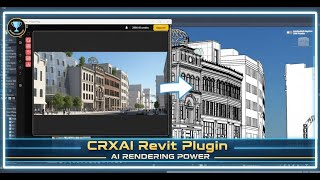
Commands
Installation/Uninstallation
The installer that ran when you downloaded this app/plug-in from the Autodesk App Store will start installing the app/plug-in. OR simply double-click the downloaded installer to install the app/plugin.
To uninstall this plug-in, exit the Autodesk product if you are currently running it, simply rerun the installer, and select the "Uninstall" button. OR click Control Panel > Programs > Programs and Features (Windows 10/11) and uninstall as you would any other application from your system.
Additional Information
Known Issues
Contact
Author/Company Information
Support Information
For product support, users can contact the CRXAI support team via email or through the official website.
Support Email: support@crxai.app
Website: https://crxai.app
Support requests may include installation issues, licensing questions, compatibility with supported Revit versions, or general usage guidance. Support is provided during standard business hours, and responses are typically sent within 1–2 business days.
Documentation and usage guidance are available online and are updated regularly to reflect new features and supported Revit versions.
Version History
| Version Number | Version Description |
|---|---|
|
2.0.0 |
CRXAI 2.0 — What’s New A major upgrade delivering faster performance, deeper integrations, and a fully interactive design workflow. 1. New Interactive Canvas • Create a custom design canvas directly inside CRXAI • Add sketches, drawings, screenshots, or model views • Real-time AI feedback and iterative design adjustments • Perfect for concept development, mark-ups, and client presentations 2. AI Chat-Driven Design Editing • Chat directly with the AI to modify drawings and visuals • Natural language commands: edit materials, change lighting, update façades, adjust layouts • Instant re-rendering with consistent style and seed control • Streamlines revision cycles and boosts creativity 3. Revit Plugin Integration • Seamless connection with Autodesk Revit • Export views or sheets directly to CRXAI • Generate AI-Powered visuals without leaving your BIM workflow • Ideal for quick client renderings and rapid design iterations 4. SketchUp Plugin Integration • One-click sending of SketchUp scenes to CRXAI • Turn massing studies and early models into photorealistic renders • Fast visualization for architects, interior designers, and 3D artists 5. Enhanced Desktop Application • Faster processing, larger project compatibility • Improved stability for high-resolution renders • Direct “screen-capture-to-AI” workflow from any BIM/CAD tool • Works offline for sensitive or confidential projects 6. New Workflow System • Step-by-step guided workflow from ideation → modeling → rendering → refinement • Unified interface for plugins, canvas, chat, and render history • Better project organization and version management 7. Improved AI Rendering Engine • Cleaner geometry understanding • More accurate architectural styles and materials • Higher resolution outputs with fewer artifacts • More predictable and consistent prompt responses 8. UI/UX Redesign • Faster navigation with a cleaner interface • Better tool grouping and improved iconography • More intuitive prompt input and render preview system |
