
BOM Exporter Pro 2026
Win64, EnglishGeneral Usage Instructions
The BOM Exporter for Vault Professional integrates seamlessly into Vault Explorer, enabling users to efficiently export Bill of Materials (BOM) data. Below is the step-by-step workflow for using the tool:
1. Accessing the BOM Exporter
- Open Vault Explorer and log in to your Vault server.
- Navigate to the file or assembly for which you want to export the BOM.
- Use one of the following methods to access the BOM Export command:
- Right-click on the file and select BOM Export from the context menu.
- Click the BOM Export button in the toolbar under the Advanced menu.
2. Configuring Export Settings
- The Vault BOM Exporter uses a configuration file (BOMExportSettings.xml) stored in the Vault. This file defines:
- Export Location: The folder where the exported BOM will be saved.
- File Format: Choose between CSV or Excel formats.
- Separator: Specify the delimiter for CSV files (e.g., comma, semicolon).
- Properties: Map Vault or Inventor property names to column headers in the export.
- User Groups: Define which user groups can access specific export configurations.
- If the configuration file is missing, the tool will generate a default configuration file in the Vault. You can customize this file to suit your needs.
3. Exporting the BOM
- Select a file or assembly in Vault Explorer.
- Click the BOM Export command.
- The tool will process the selected file and export the BOM based on the configured settings.
- If any errors occur during the export, they will be displayed in a message box for troubleshooting.
4. Reviewing the Exported BOM
- Navigate to the export location specified in the configuration file.
- Open the exported BOM file (CSV or Excel) to review the data.
- The exported file will include the properties and structure defined in the configuration.
5. Customizing the Workflow
- Update the BOMExportSettings.xml file to:
- Add or remove properties to include in the export.
- Change the export format or location.
- Adjust settings for specific user groups.
- Re-run the export command to apply the updated settings.
How Does It Fit Into Your Workflow?
The Vault BOM Exporter simplifies the process of extracting BOM data from Vault, making it easier to share and manage BOMs across teams. By integrating directly into Vault Explorer, it eliminates the need for manual data extraction, saving time and reducing errors. Whether you're preparing BOMs for manufacturing, procurement, or reporting, the Vault BOM Exporter ensures a streamlined and reliable workflow.
Screenshots


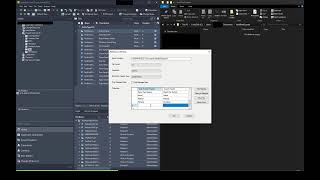
Commands
| Ribbon/Toolbar Icon | Command | Command Description |
|---|---|---|
|
|
BOM Export |
The Export BOM command allows users to export the Bill of Materials (BOM) for a selected file or assembly from Vault. BOMs can be exported in CSV or Excel formats based on customizable settings defined in a configuration file (BOMExportSettings.xml). Users can specify export locations, file formats, delimiters, and property mappings. The command is accessible via the toolbar or right-click context menu in Vault Explorer and supports single-file selection only. |
Installation/Uninstallation
The installer that ran when you downloaded this app/plug-in from the Autodesk App Store will start installing the app/plug-in. OR, simply double-click the downloaded installer to install the app/plugin. You may need to restart the Autodesk product to activate the app/plug-in. To uninstall this plugin, exit the Autodesk product if you are currently running it, simply rerun the installer, and select the "Uninstall" button. OR, click Control Panel > Programs > Programs and Features (Windows 10/11) and uninstall as you would any other application from your system.
Additional Information
Known Issues
Contact
Author/Company Information
Support Information
For support with the BOM Exporter for Vault Professional, please contact us via email at TotemCAD@outlook.com. We will do our best to respond to your inquiries as soon as possible.
When reaching out for support, please include the following details to help us assist you more effectively:
- A clear description of the issue or question.
- The version of Vault you are using (e.g., Vault Professional 2026).
- Any error messages or screenshots, if applicable.
Thank you for using BOM Exporter for Vault Professional. We appreciate your patience and understanding as we work to address your queries.
Version History
| Version Number | Version Description |
|---|---|
|
26.0.1 |
Fixed issue where export file type would always be csv regardless of setting. |
|
26.0.0 |
Initial release |
